
Workspaces in Windows
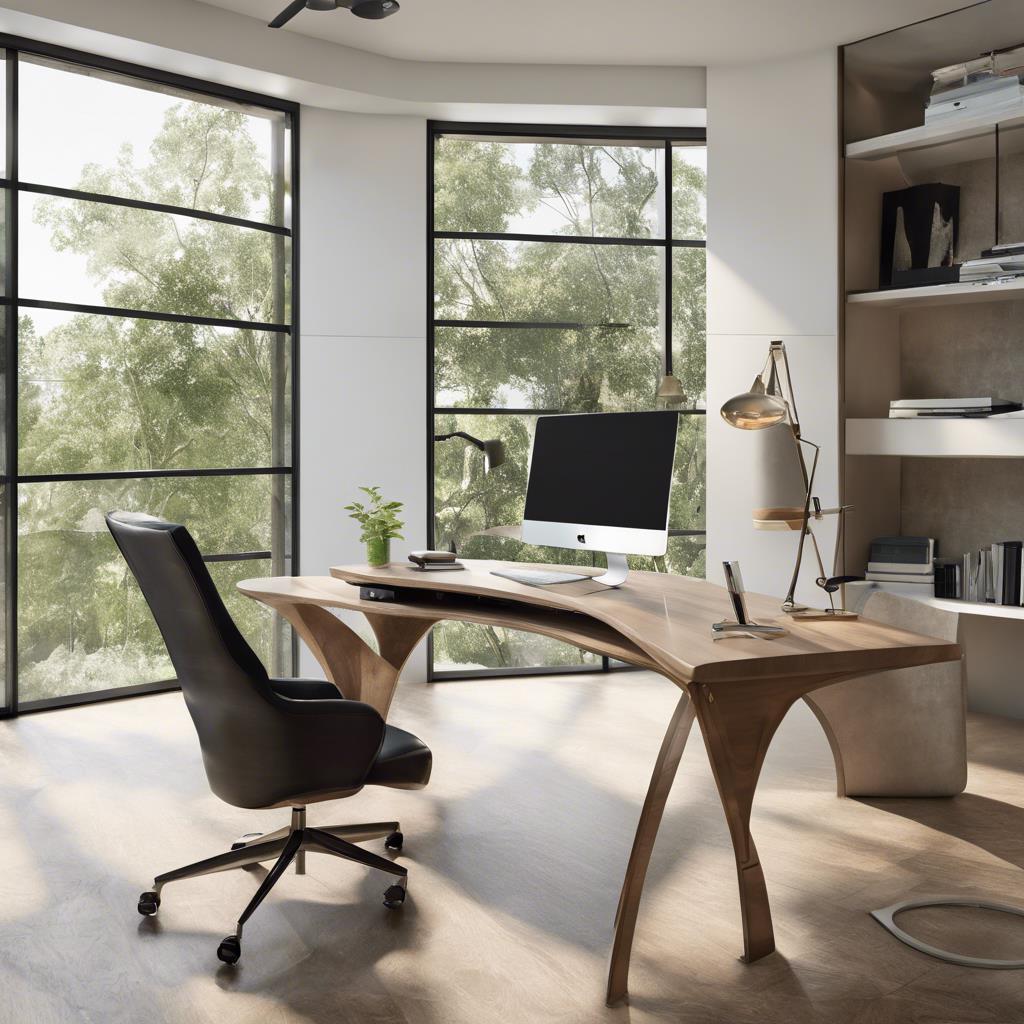
The average professional spends over 1,700 hours per year at their computer workspace. A well-organized digital workspace doesn’t just streamline daily tasks—it can significantly boost productivity and reduce fatigue. Windows offers powerful built-in features and customization options to create an efficient workspace fitted to your needs.
Understanding Workspace Fundamentals
A productive workspace represents more than just a physical or digital environment—it’s a system designed to enhance focus, efficiency and task completion.
What defines a productive workspace
A productive workspace is characterized by its ability to improve efficiency while minimizing distractions. It combines organized digital resources and a structured layout that supports focus on work.
Key elements of workspace organization
Effective workspace organization relies on several critical components:
- File Management – Implementing systematic file storage with clear categorization
- Tool Accessibility – Positioning frequently used applications and resources within easy reach
- Visual Organization – Maintaining clean screen layouts with minimal distractions
- Resource Integration – Connecting necessary tools and applications efficiently
- Automation Systems – Incorporating time-saving automated workflows
Benefits of custom workspace setup
Custom workspace configurations in Windows deliver improvements in productivity and efficiency:
| Benefit | Impact |
| Improved Focus | 15% increase in task completion efficiency |
| Reduced Distractions | Separate workspaces for different roles minimize context switching |
| Enhanced Organization | Structured file systems reduce search time |
| Better Workflow | Custom layouts streamline frequent tasks |
| Increased Efficiency | Quick access to essential tools and resources |
Virtual desktops in Windows provides additional advantages, allowing users to create spaces for different roles.
Modern workspace configurations also emphasize the importance of digital cleanliness, regular maintenance and systematic organization methods. This approach ensures that workspaces remain adaptable to changing needs while supporting long-term productivity goals.
Essential Windows Workspace Features
Windows provides powerful built-in features that transform how users interact with their digital workspace. These tools enable efficient organization and seamless task management across multiple projects and applications.
Virtual desktop capabilities – Virtual desktop feature functions as a digital workspace multiplier, allowing users to create environments for different tasks. Each desktop can be customized with unique backgrounds and names, making it easier to identify. This separation helps maintain focus by keeping work-related applications separate from personal activities, effectively minimizing distractions.
Snap layouts and groups – The Snap feature revolutionizes window management by offering predetermined layouts that optimize screen space usage. When a window is snapped, the Snap Assist tool automatically appears, displaying thumbnails of other open windows for quick arrangement.
| Action | Keyboard Shortcut |
| Create New Desktop | Win + Ctrl + D |
| Switch Desktops | Win + Ctrl + Arrow |
| Open Snap Layouts | Win + Z |
| Quick Side Snap | Win + Arrow Keys |
Task View optimization – Task View serves as the command center for workspace management, accessible via the Windows key + Tab combination. This feature provides:
- Comprehensive overview of all open applications
- Quick access to virtual desktop creation and management
- Ability to customize desktop backgrounds and names
- Efficient context switching between different workspaces
Ergonomic Workspace Configuration – Proper configuration of your digital workspace can significantly impact both productivity and physical well-being. Understanding the relationship between screen placement, window management, and accessibility features creates an environment that supports extended periods of focused work.
Display arrangement best practices – Monitor positioning plays a crucial role in maintaining proper posture and reducing eye strain. The optimal setup places screens at arm’s length, with the top third of the display aligned with the user’s line of sight. For multi-monitor
configurations, consider these essential factors:
| Arrangement Aspect | Recommended Setup |
| Primary Monitor | Centered, directly in front |
| Secondary Displays | Adjacent, same height as primary |
| Screen Distance | Arm’s length (approximately 20-28 inches) |
| Monitor Height | Top third at eye level |
| Viewing Angle | 15-20 degrees below horizontal |
Window positioning for productivity – Strategic window positioning enhances workflow efficiency while maintaining ergonomic benefits. Position windows perpendicular to natural light sources to minimize glare and reflection. Windows 11’s Snap layouts feature facilitates optimal window arrangement, allowing users to maintain proper viewing angles while working with multiple applications.
For maximum productivity, arrange windows based on task frequency:
- Primary work windows centered in the main display
- Reference materials positioned in peripheral vision
- Communication tools in easily accessible secondary zones
Workspace accessibility settings – Windows provides comprehensive accessibility features to accommodate various user needs and preferences. These settings can be accessed quickly using Windows key + U, offering customization options for:
- Display Enhancement
- High contrast themes for reduced eye strain
- Text size adjustment without changing screen resolution
- Color filters for various types of color vision deficiencies
- Mouse pointer size and color customization
- Keyboard response adjustments
- Voice control integration
The built-in Magnifier tool offers flexible zoom options, activated through Windows key + Plus sign, while screen reader support through Narrator provides additional assistance for users with visual impairments. These features integrate seamlessly with Microsoft 365 applications, ensuring consistent accessibility across the entire workspace environment.
Hotkey optimization tools – PowerToys Keyboard Manager transforms how users interact with their workspace through customizable keyboard shortcuts. This utility enables precise control over keyboard inputs, allowing users to:
| Function | Capability |
| Key Remapping | Reassign individual keys for specific applications |
| Shortcut Creation | Design custom shortcuts for frequent tasks |
| App-Specific Rules | Configure different shortcuts per application |
| Text Expansion | Convert short keypresses into longer text strings |
Task-based workspace organization – The PARA method (Projects, Areas, Resources, Archives) provides a structured approach to organizing digital workspaces. This system focuses on actionability rather than traditional subject-based organization. Projects represent active work with specific deadlines, while Areas encompass ongoing responsibilities that require continuous attention.
Key organizational principles:
- Organize information by actionability instead of subject
- Break down responsibilities into specific projects
- Maintain separate spaces for active and archived content
The system emphasizes regular review and updates, ensuring that workspace organization remains relevant to current priorities. This approach particularly benefits professionals managing multiple projects simultaneously, as it provides clear separation between different work contexts.
By integrating these workspace management strategies with Windows’ native features and third-party tools, professionals can create a more efficient and productive digital environment. The key lies in maintaining consistent organization while allowing flexibility for different work styles and project requirements.
Looking Ahead
Workspace optimization stands as a crucial element for modern professionals spending significant time in digital environments.
Success in digital workspace optimization requires continuous refinement and adaptation of these practices. Through thoughtful implementation of Windows features, ergonomic principles, and productivity tools, professionals can create workspaces that support their goals while maintaining well-being and efficiency.